


Unreal Engine pipelines often rely on FBX for skeletal meshes and animation imports. If you have a static FBX character (no skeleton), the fastest route is: run auto-rigging, then import the resulting skeletal FBX into Unreal as a Skeletal Mesh. AutoRig builds the rig from the geometry of the model, so the character does not have to stand in a T-pose.
Step 1: Prepare your FBX (no T-pose needed)
The skeleton is fitted to the geometry in any pose. For a biped whose legs stand apart, the standing leg sets the bone lengths, and if the FBX already holds a skeleton or an animation, its own rest pose is used. What still helps:
- apply transforms in your DCC if possible
- normalize the scale and units before rigging
- no flipped normals or non-manifold geometry
- keep the textures with the model: a model's own textures are never lost, and a model without textures gets PBR textures automatically
Step 2: Auto-rig the FBX online
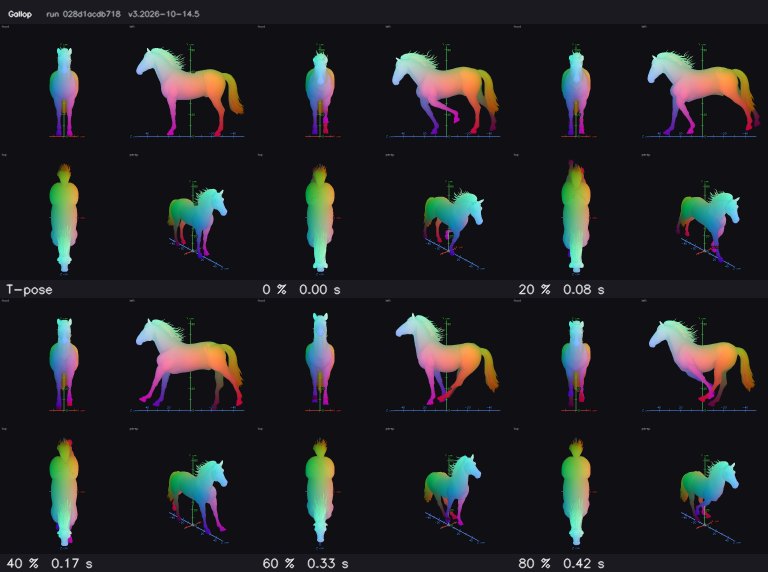
Upload your FBX on autorig.online, dropping it into the upload zone. The task opens in the 3D viewer at once. The fast rig builds the skeleton and skin in seconds, animation clips from the library of the model's category are retargeted onto it, and quality checks (joint placement, skin tears, limb collisions) keep running in the background. After the task completes, download the Unreal-friendly FBX export; GLB, USDZ, a ZIP and a Unity package are available too.
Step 3: Import into Unreal
- In Unreal, go to Content Browser → Import.
- Select the rigged FBX export.
- Choose Skeletal Mesh (not Static Mesh).
- If there are animations included, enable Import Animations.
- Import and open the Skeletal Mesh asset to preview.
Step 4: Retargeting (optional)
If you want to reuse animations from another character, Unreal's retargeting tools can map animations between skeletons. The cleaner your rig and proportions, the smoother retargeting will be.
Common Unreal issues
Mesh is scaled wrong
Scale mismatches come from inconsistent units. If you can, normalize the scale in your DCC before rigging.
Skinning artifacts
Auto skinning is a best-effort process, and numeric deformation checks run on every rig in the background. Heavy clothing, armor, or unusual topology can still create deformations. For hero characters, use the auto-rig as a baseline and polish weights manually.
Bone orientation warnings
Unreal is picky about skeleton consistency. Use one consistent export path (same tool) for all your characters to avoid unexpected bone axis behavior.
Tip: if you keep seeing the same issue, open the task in the viewer, check the skeleton (blueprint mode, key B), fix the bones and re-rig. Read the pose guide, compare GLB and FBX or see animation retargeting for more.