
Guides by what you rig
Every category has its own skeleton template, fit rules, skin rules, clip library and quality checks. Start with the one that matches your model.
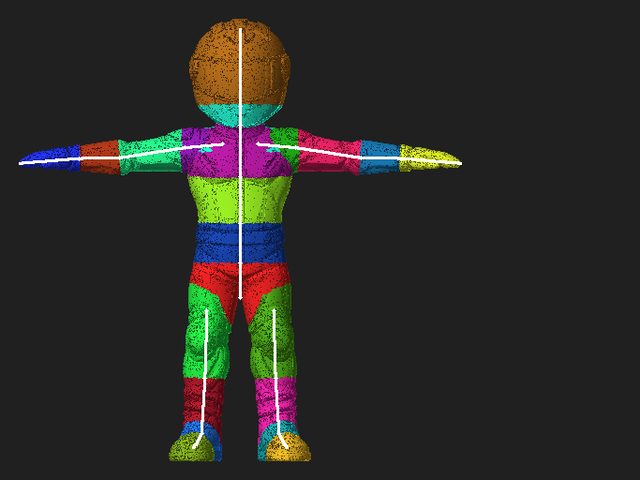
Humanoids and bipeds
Characters, heroes and NPCs in any pose. When the feet do not stand side by side, the standing leg sets the lengths for the other leg.
Read guide ->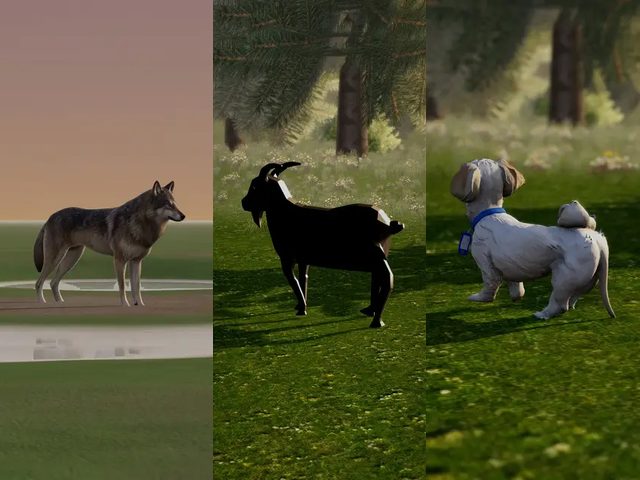
Quadrupeds
Dogs, cats, bears, cows and pigs get a four-legged skeleton and clips retargeted from a reference library, checked numerically.
Read guide ->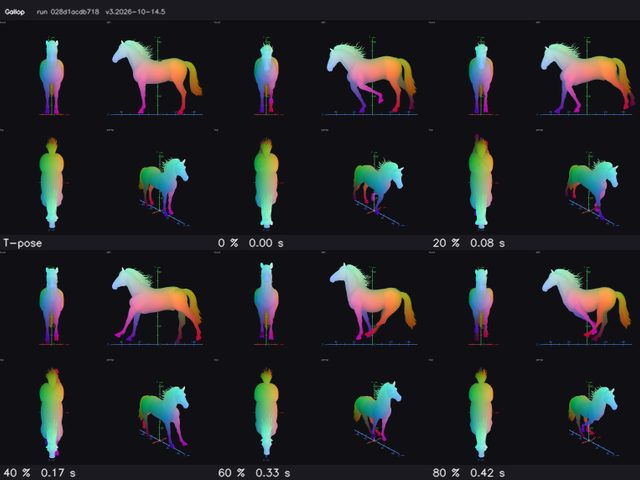
Horses, deer and zebras
A dedicated equine template with scapula, elbow, mid-neck and leg profile joints, and planted-hoof walk, trot and gallop.
Read guide ->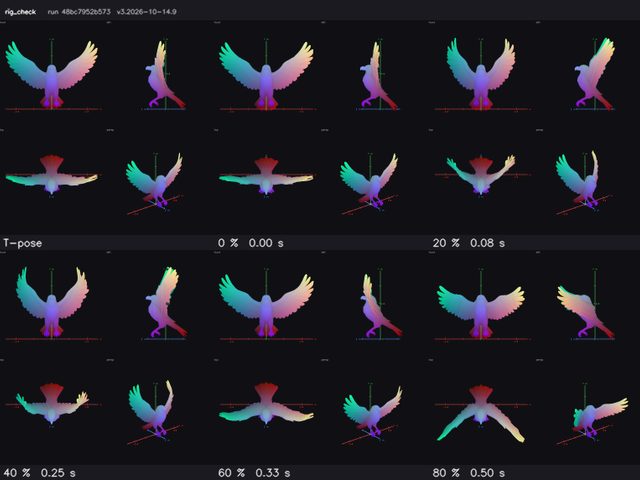
Birds and wings
Wings are rigged as wings, never as arms. A bird gets its own skeleton, skin rules and clips.
See animal rigging ->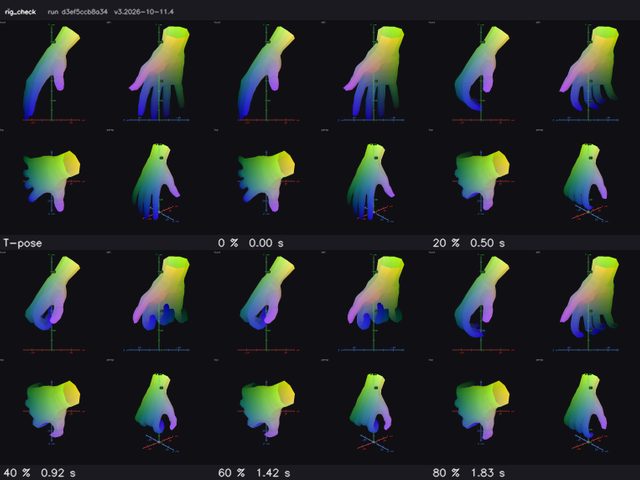
Hands, gloves and FPS arms
A single hand, a glove or first-person arms get per-finger joints and hand clips.
See how it works ->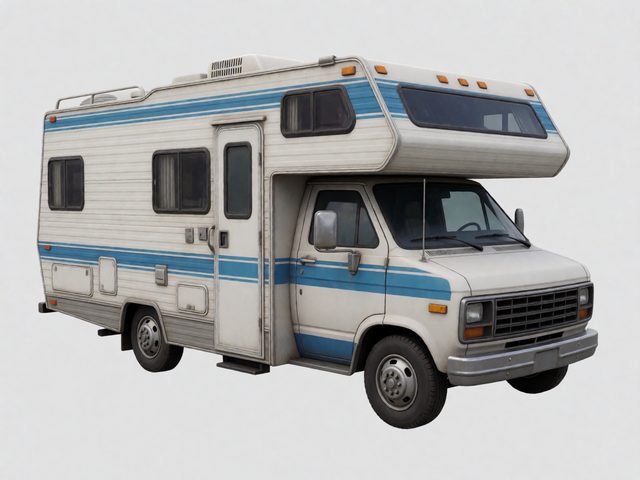
Cars from one picture
Upload a picture of a car. AutoRig segments the body, wheels, doors, hood and glass, models every part, fits wheel colliders and hinges the doors.
See how it works ->
Monsters, serpents and multi-limb creatures
Creatures that are not a biped or a quadruped have skeleton templates and clip libraries of their own.
See animal rigging ->Inside the viewer
Every task is one Unity WebGL viewer with an agent chat. It opens on a black scene at once and plays the rig stages while the model loads.

Edit bones in blueprint mode
Press B to edit bones with symmetry. The model is re-rigged 15 seconds after your last edit, or at once with the button. Confirming the skeleton is offered, never required.
See how it works ->
Camera presets and hotkeys
Jump to the face, elbows, hands, knees, feet or heels. Every control shows its hotkey; right mouse pans and middle mouse orbits.
Read the FAQ ->
The session agent
One shared agent per task works inside the viewer and answers in the language of the person who created the task.
Read the FAQ ->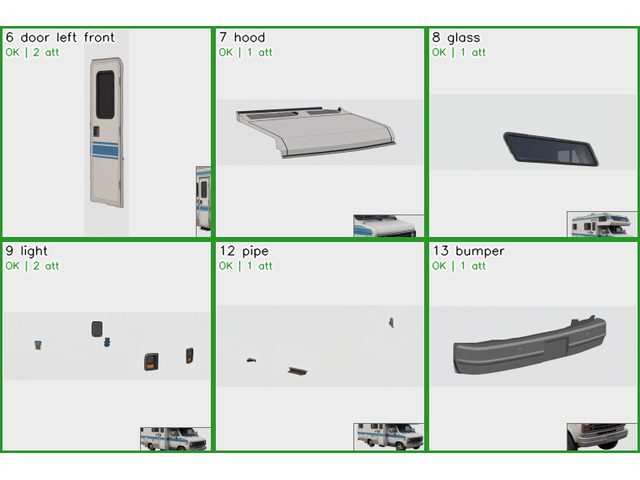
Review the parts of a car
The Parts panel shows every isolated part. Accept it, redraw it or order it as a 3D model. Paid 3D clouds run only when you press their button.
See how it works ->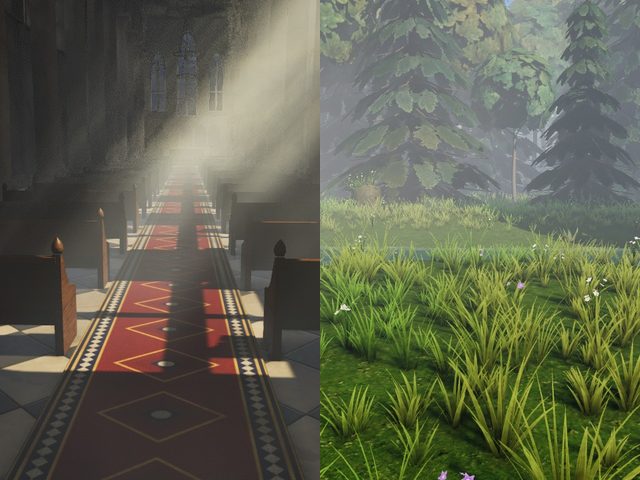
Environment scenes
After the rig stages the viewer loads a scene with baked lighting and probes: cathedral, Sponza, river glade or jungle ruins.
See how it works ->
Textures and downloads
A model keeps its own textures. One without textures gets PBR textures automatically. Download GLB, FBX, USDZ, ZIP, a Unity package or Blender files.
Read the FAQ ->Rig type auto-rigging guides
Dedicated SEO guides for every supported AutoRig pipeline, with preparation tips and real public examples from the gallery.
Workflow tutorials
Format, engine, pose, and retargeting guides for production exports.
Mixamo Alternative
Upload any model or picture and get a rig, animation clips and every export, with no pose to prepare first.
Read Guide →
Rig GLB for Unity
Rig a GLB character and bring it into Unity with its animation clips. The Unity package is one of the downloads.
Read Guide →
Rig FBX for Unreal
Rig an FBX character and import the skeletal mesh with its animations into Unreal Engine.
Read Guide →
T-pose rig: any pose works
How a posed model is rigged: the file's bind pose first, the standing leg as the reference, and a skeleton confirmation that never blocks.
Read Guide →GLB vs FBX
GLB or FBX: how the two formats compare for rigged characters, and which one suits your engine.
Read Guide →
Auto Rig OBJ
Rig an OBJ model. Upload it in a ZIP together with its textures so nothing is lost.
Read Guide →
Animation Retargeting
Clips are retargeted automatically onto every new rig. Learn how to reuse the animation in Unity and Unreal.
Read Guide →
Face Rig & Animation
How head analysis builds facial soft masks and landmarks for animation and lip sync.
Read Guide →
Image to Rigged Character
Drop a picture of a character. AutoRig builds the 3D model, rigs it and animates it in the viewer; every export comes back as one task.
Read Guide →