
AutoRig FAQ: rig, animate and export any 3D model
Short answers about uploading, the viewer and the AI agent, rigging for characters, animals, hands and cars, animation, textures and export.
Upload and speed
What can I upload?
One upload zone on the home page takes a 3D model (GLB, FBX, OBJ or a ZIP with textures), a picture, a picture of a car, or a text description. Every task gets its own page: one task, one viewer, with the agent chat.
Open the upload zoneHow fast is the rig?
The fast rig builds the skeleton and skin from the geometry in seconds, and the animation clips are retargeted at once. The target is a rigged, animated model within one minute from pickup. The quality checks run in the background of the viewer.
How it worksDo I have to confirm the skeleton?
No. The viewer offers to confirm the skeleton in the blueprint, but nothing waits for it: the animation is made at once. Confirm or edit the bones only if you want to.
The viewer
What happens after I upload a model?
Every task opens in its own Unity WebGL viewer. It starts on a black scene at once and plays the stages (voxels, erosion, bones, rig) while the mesh loads, then loads the chosen environment scene. When the rig is ready, the animations play from the bar at the bottom, and the AI agent chat sits in the corner.
How do I move the camera?
The right mouse button pans and the middle button orbits; left-drag also orbits, and Shift + left pans. The wheel changes the lens, Ctrl + wheel moves closer. F frames the model, F11 goes full screen, F12 saves a screenshot and F1 lists every key. On a phone, drag with one finger and pinch with two.
Are there camera presets and hotkeys?
Yes. Camera presets frame the face, elbows, hands, knees, feet and heels, so you can check the joints up close. Every control shows its hotkey as a badge, and F1 lists all keys.
What are the icons around the viewer?
Left: model, rig, bones, blueprint, voxels, framing, auto camera and the outliner. Right: the look of the scene. A click switches an icon to its next preset, the last step turns it off, and holding the icon opens its detailed settings. Bottom left: the channels, keys 1–0. A right click opens a menu with this FAQ.
Which environment scenes are there?
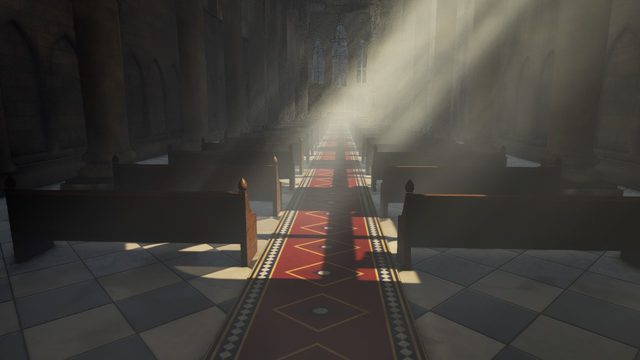
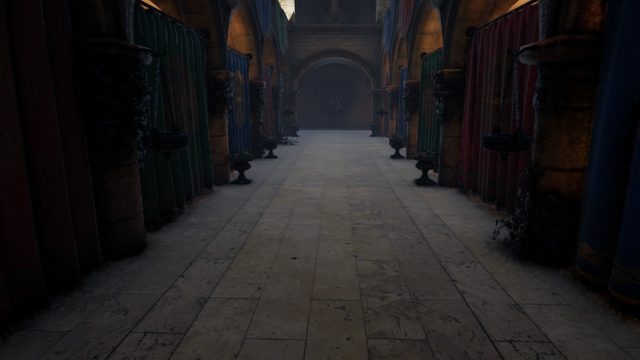
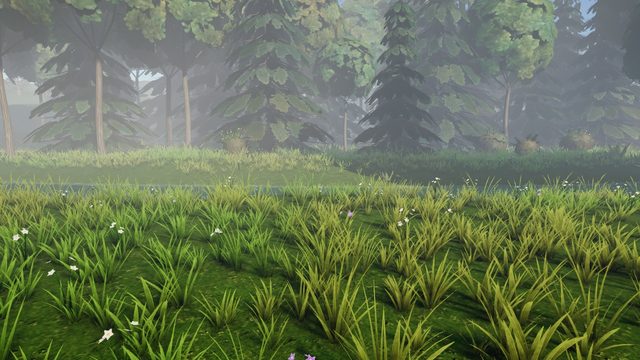
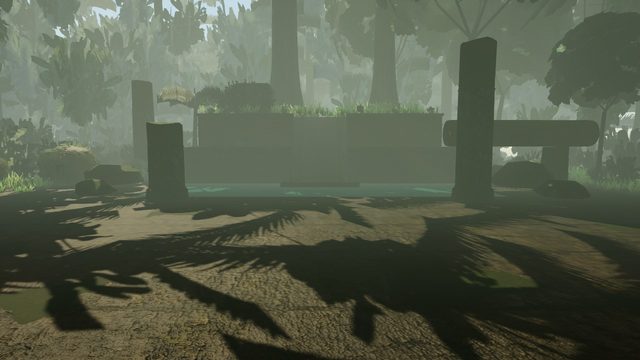
The viewer loads only the scene it needs, after the rig presentation: for example a cathedral, Sponza, a river glade or jungle ruins. Scenes come with baked lighting, reflection and light probes, and colliders.
The AI agent
What can the AI agent do?
The agent lives in your task's viewer. It looks at the model, decides what to do next and uses tools: it checks joints, feet and skinning, repairs frames, adds animations, changes materials, light and scene, and renders images and videos of the result.
How do I talk to the agent?
Type in the chat under the video window in the bottom-right corner, in any language. Ask in plain words: “check the feet”, “make her wave”, “make the eyes glow”. Quick-reply chips suggest next steps, and renders and videos appear right in the chat.
Does the agent see what I see?
It knows which layer and clip are on screen and whether the bones are shown, and it can drive the viewer for you: play a clip, show a layer, move the camera, change materials, weather and time of day.
Will the agent change my original file?
No. Your upload stays as it is. Edits are saved as new versions on top of it, and material changes can be undone.
Model categories
Which kinds of models are rigged?
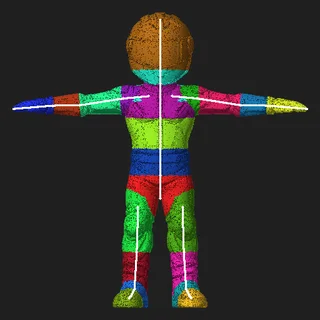
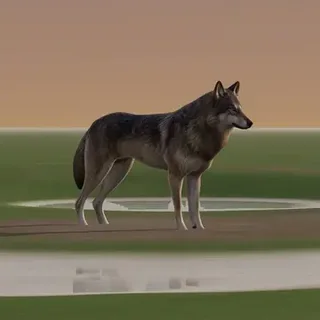
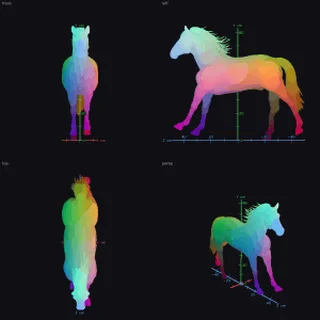
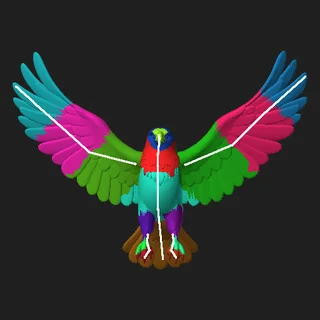
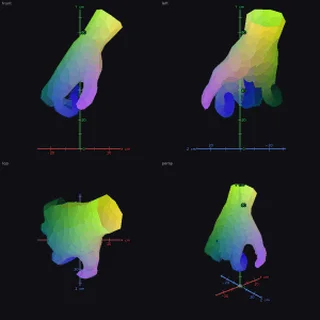
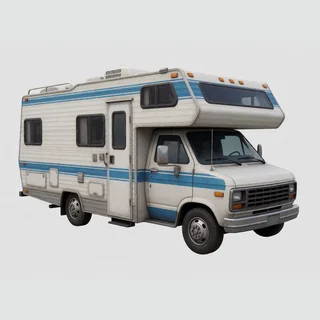
Biped (humanoid), quadruped, equine, bird, serpent, monster, multilimb, hands, primate and vehicle. Each category has its own skeleton template, fit and skin rules, clip library and quality checks.
How is the category chosen?
AutoRig picks it automatically from the shape of the model and what a vision check sees, so you do not choose it. If a model lands in the wrong category, report it with the defect button in the Telegram notice.
How are horses and other four-legged animals rigged?
Quadrupeds (dogs, cats, bears, cows, pigs) get a quadruped skeleton. Equines (horses, deer, zebras) get a richer one with scapula, elbow, mid-neck and leg profile joints, and planted-hoof gaits: walk, trot and gallop.
Animal riggingHow are birds and wings rigged?
Wings are rigged as wings, never as arms. A bird gets its own skeleton and its own clip library.
Can I rig a single hand, gloves or FPS arms?
Yes. The hands category rigs a single hand, gloves or first-person arms with per-finger joints and has hand clips of its own.
What if the model is not in a T-pose?
Any pose works. When a biped stands on one leg or steps, the leg on the floor sets the bone lengths for the other, so both legs get the same lengths. If the file already has a skeleton or an animation, its own rest pose is used first.
Any pose, not only a T-poseCars and vehicles
Can AutoRig rig a car from a picture?
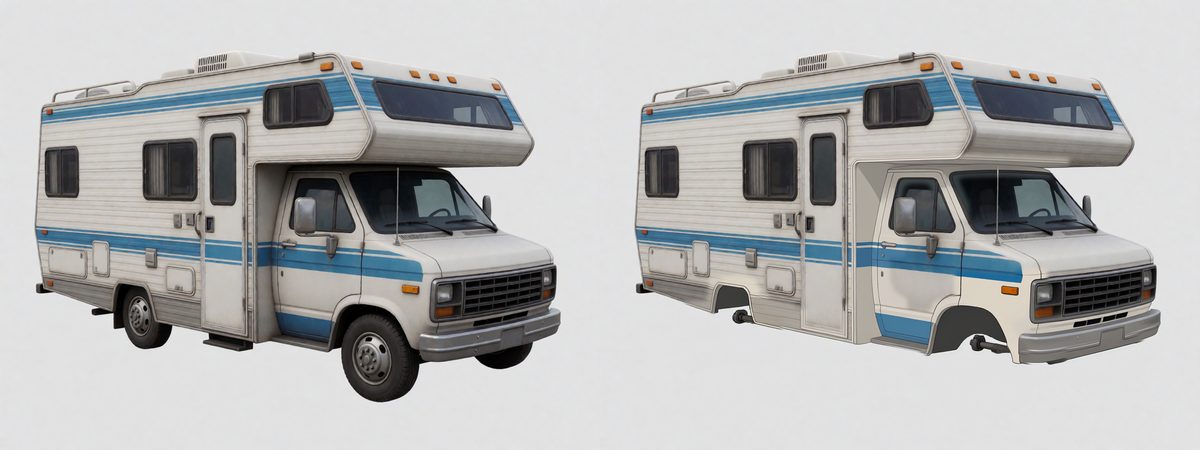
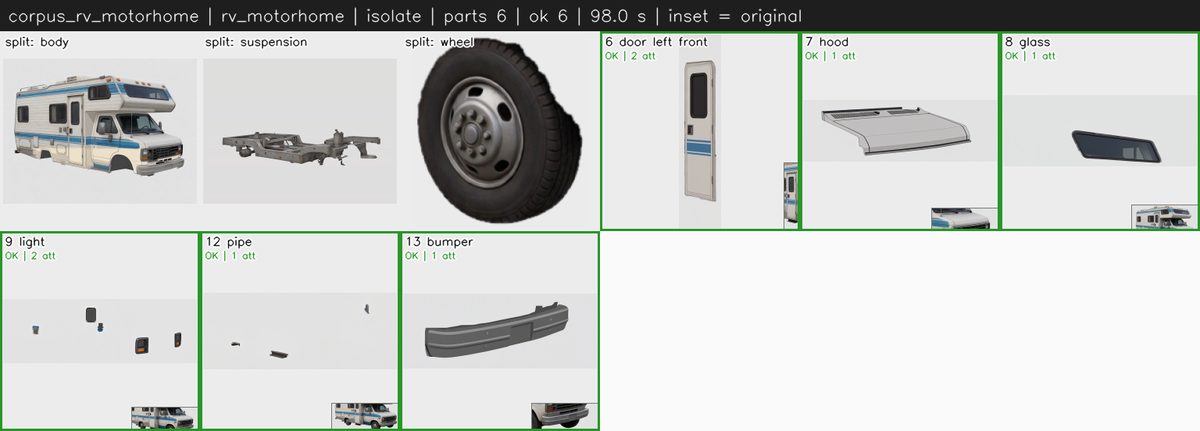
Yes. Drop a picture of a car on the home page. The vehicle conveyor segments it into body, wheels, doors, hood, trunk, hatches, glass, lights and bumpers, models each part as its own 3D object and assembles a rigged car.
See rigged models in the galleryHow do I review the parts of a car?
Every part is isolated and restored as a whole object, and the viewer lists them in the Parts panel. For each part you accept it, redraw it or order it as a 3D model. The body is drawn as a bare shell without doors, hood and glass, so those parts open and move on their own.
How are wheels, body and doors made correct?
Each wheel is normalised to a cylinder collider that matches its own shape. The body is corrected to left–right symmetry with a free-form deformation (FFD) lattice, and the doors are hinged.
Is there an interior and a driver?
Yes. The cabin has a seat, a steering wheel, pedals and a gear stick, and a rigged driver is seated at them by IK.
Are paid 3D services used for cars?
The free farm is the default. Paid 3D clouds (Tripo and Hunyuan cloud) run only when you press their explicit button.
Rig and skinning
How does auto-rigging work?
The fast rig builds the skeleton and skin from the model's geometry in seconds, using the template of its category, and the animation clips are retargeted at once. Quality checks (joint placement, skin tears, limb collisions, numeric deformation QA) run in the background of the viewer. Humanoids get a standard humanoid skeleton that animation tools and game engines understand.
How do I inspect the bones and the skinning?
Press F8 or the bones icon to see the skeleton over the model. Play a clip, press Space to stop on a frame and step with the arrow keys. Channel 0 colours the body parts, and the outliner (9) hides or isolates any part.
A joint is in the wrong place. Can I fix it?
Yes. Press B for Blueprint mode and move the bones; symmetry mirrors your edit to the other side. The rig is rebuilt 15 seconds after your last edit, or at once with the re-rig button, and the correction goes into every animation. You can also ask the agent to check the feet, the knees or a single frame.
How is the rig quality kept up?
Every model that once broke a rig becomes a regression test, and every engine release has to pass these autotests before it goes live. Rig quality comes before speed.
Which models can be rigged?
People, stylised and anime characters, animals, birds, creatures, hands and cars. Upload GLB, FBX, OBJ or a ZIP with textures, or generate a model from a picture or text.
Animation and retargeting
Which animations do I get?
A rigged character comes with ready motions such as idle, walk, run, jump, wave, dance, punch and look around; every other category has its own clip library, for example walk, trot and gallop for a horse. They play from the bar at the bottom of the viewer, and the agent can add more on request.
Where do the clips come from?
For each category, reference videos of the gaits and actions are generated and the motion is extracted once. The clips are then retargeted automatically onto every new rig, with a numeric QA check on each clip. Procedural clips are the fallback.
What is retargeting?
Retargeting moves a motion made for one skeleton onto yours while keeping your character's proportions. Your joint corrections are carried into every retargeted clip.
Can I fix one bad frame?
Yes. Press Space to stop the clip, find the frame on the slider and press the wrench: the frame is smoothed with its neighbours and flips in the clip are repaired.
Can I add my own clips?
Yes. Custom clips can be added in the viewer to the task's clip set, and they are retargeted onto your rig like the built-in ones.
Modeling and editing
Can I edit the model itself?
Yes. Pick any object, material or body part in the outliner (9) or click it in the scene, then change its colour, metalness, smoothness and glow. The eye icon hides parts so you can look inside.
Can the agent edit the model for me?
Describe the change and the agent makes it: recolour clothes, make eyes or armour glow, try other materials. Every material change can be undone.
Can I change the scene around the model?
Yes: the post-processing look, depth of field, volumetric light, weather, time of day, stages such as a studio or a cathedral, and a radial pulse on Alt. Each is one click on the right toolbar.
Generation
Can I make a 3D character from a picture?
Yes. Upload a picture: AutoRig builds a 3D model from it, rigs it and opens it in the viewer with animations. A picture of a car goes through the vehicle conveyor instead.
Can I describe a character in words?
Yes. Write what you want to see; the character is generated from the description, then rigged and animated the same way.
Can I start from a video?
Yes. Send a video and the agent uses it as a reference for the character and its movement.
Can the agent make images and videos of my character?
Yes: renders, turntables and short videos of the character in a scene. They appear in the chat next to the viewer.
Textures and channels
How do I check textures and materials?
Use the keys 1–0 or the icons in the bottom-left corner: 1 full shading, 2 albedo, 3 normals, 4 metallic, 5 roughness, 6 emission, 7 object IDs, 8 material IDs, 9 the outliner, 0 body parts.
What are object and material IDs?
Each separate object or material gets its own flat colour, so you see at once how the model is split and which parts share a material.
Are my textures kept?
Yes. A model's own textures are never lost: materials, textures and UVs are kept through rigging, and the PBR maps (base colour, normal, metal-roughness and emission) show up in the channels.
What if my model has no textures?
It gets PBR textures automatically (albedo, roughness, metallic, normal and emissive), made from the model's own projections. The textured model is what the vision checks and the previews use.
Export
Which formats can I download?
The rigged, animated model downloads as GLB and FBX. USDZ, a ZIP bundle, a Unity package and a Blender file are offered too, and static copies are available as OBJ.
Does it work in Unity, Unreal and Blender?
Yes. The FBX imports as a humanoid in Unity and as a skeletal mesh in Unreal, and the GLB opens in Blender, three.js and other web viewers. A ready Unity package and a Blender file come from the same task.
Blender pluginCan I use the result commercially?
Yes, if you own the rights to the source model. AutoRig adds the skeleton, skinning and animations and claims no ownership of your model.
Is there an API?
Yes. Tasks can be created, tracked and downloaded through the API; the developer page has the details.
Developer APILanguages and reports
Which languages are supported?
The site is available in English, Russian, Chinese, Hindi and Persian (right to left). English pages have no prefix; the others live under /ru/, /zh/, /hi/ and /fa/.
How do I report a bad rig?
The Telegram notice of a finished task has defect buttons, for example a wrong model transform, a torn mesh after skinning or elbows that are too wide, and you can reply with text too. A report is recorded and checked, and the fix goes into the engine for the whole category, not into one model.